The YouTube player loads when you press Play.
EMEET Pixy and OBSBOT Tiny 2: Trying the Tracking and Camera Modes
Switching between the two webcams, testing movement and giving whiteboard mode a quick try.
Article published November 3, 2026.
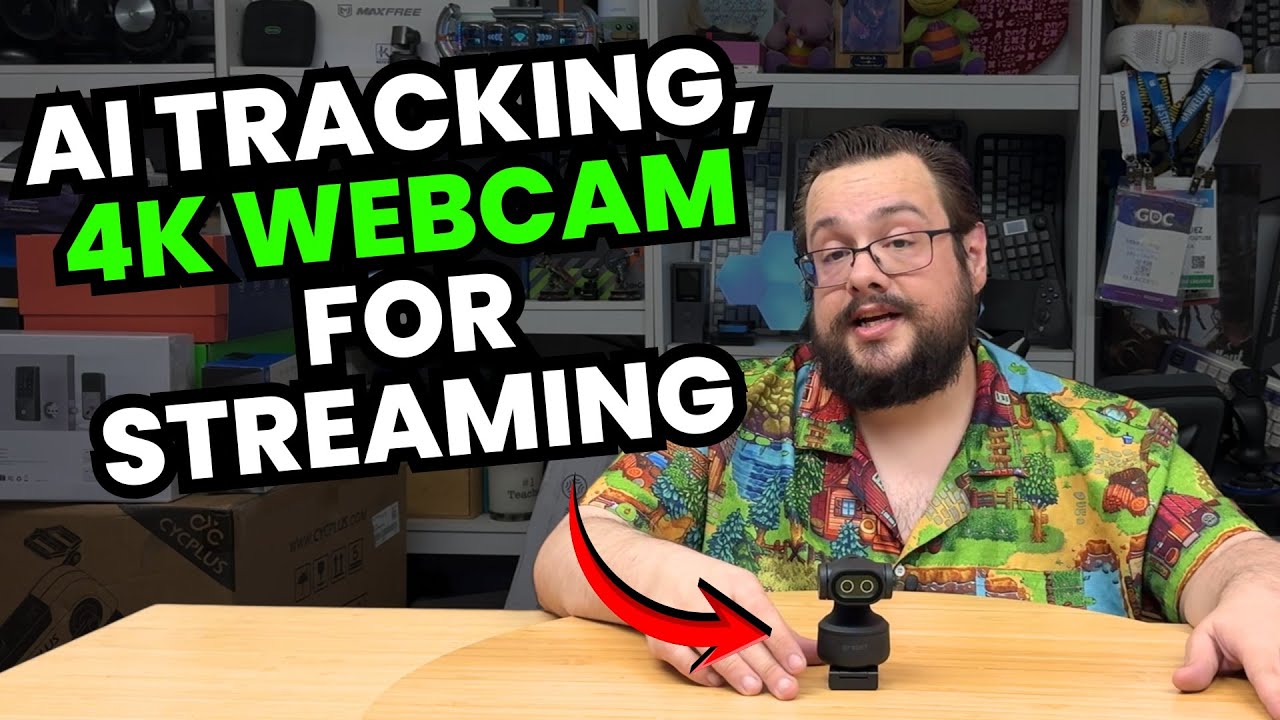
The EMEET Pixy gives me a reason to put two tracking webcams on the desk together. I have worked with both EMEET and OBSBOT, and I already like using the Tiny 2. Seeing another camera offer a similar set of controls makes me want to try the actual views side by side.
This video gets beyond the unboxing. I switch between cameras, move around the scene and work through some of their modes. It is still a studio demonstration, with settings I change during the recording, rather than a controlled lab comparison.
Unpacking the Pixy
I go through the cable, adapter, guides and substantial-feeling monitor mount before moving it to the desk. The dual-camera design catches my attention, but my questions about possible 3D or dual-recording uses are questions for a future video, not features I establish here.
For another approach to a streaming-camera mount, my YoloCam S3 first look covers changing between portrait and landscape orientation. Here, the main interest is what happens when the camera follows me.
Movement matters more to me than the biggest mode label
I start the Pixy demonstration at 1080p and 60 frames per second, upscaled in the recording, then switch to its 4K 30 mode. I prefer the higher frame rate for the movement I want in a stream. I do not present the upscaled view as native 4K at 60 frames per second.
I move across the scene and the Pixy follows. Then I browse the controls, try effects and select privacy mode, which turns the camera away before I turn it back on.
The quick whiteboard experiment needs some adjustment
I try the desk and whiteboard views, using a display in the background as the rectangular target for the whiteboard mode. The software changes the perspective, and I look at adjusting the boundaries.
I do that quickly, and I say in the video that the setup is not perfect. It shows the feature responding to my target; it does not establish a fully calibrated presentation workflow.
Switching over to the Tiny 2
On the OBSBOT I again use 1080p at 60 frames per second and show the 4K option. I turn tracking on and move across the scene. Its initial movement seems slower to me, then I adjust the tracking speed and it responds more quickly.
That setting change is important to the comparison. I would not turn the first movement into a fixed claim that one camera always tracks faster. Both give me tracking, positioning and presentation controls to explore.
I leave the image comparison open for viewers to judge from the demonstration. I discuss prices as they appeared during the recording, but I have not established a current price gap or an objective winner here. What I wanted was to see how the two cameras behaved in the same studio, and to make those controls part of the test instead of stopping at the box.
Links from the video
Affiliate disclosure: These links may earn me a commission at no extra cost to you.
Links and offers are from the video description. Availability, prices and offer terms may change.
Some links to other products on this page are affiliate links, and we may earn a commission if you buy through them. It costs you nothing extra, and it has not changed what this article says — where a competitor is the better answer, we say so.