 Updated Oct 19
InfinitePIPProductivity · Display
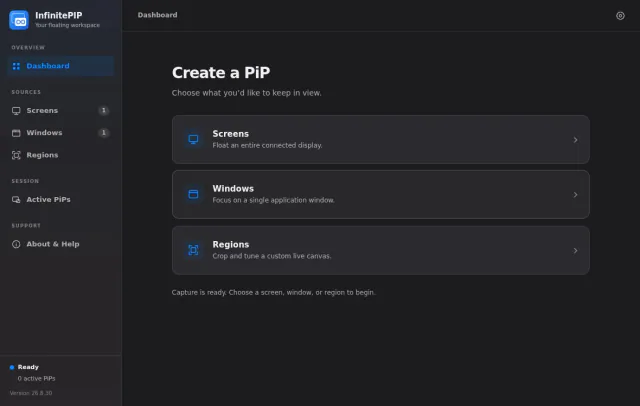
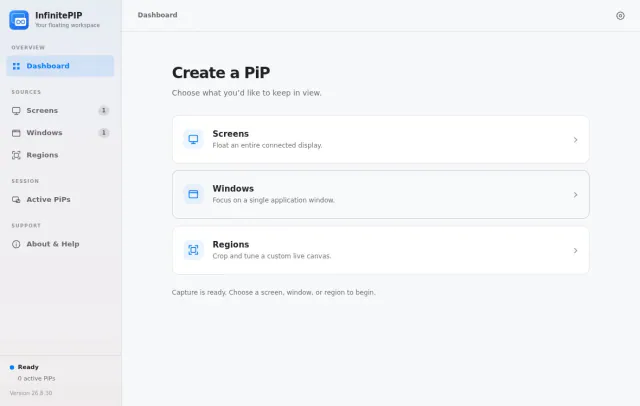
Keep any screen, window or region in view, always on top.
$4.99WindowsmacOSLinux
Unlock hidden Windows features.
WinPick, a play on 'Windows lockpick', was a Windows 10/11 desktop app for browsing and running scripts that customise, optimise and tweak Windows.
Scripts were sorted into categories in the left panel. A double-click ran one and showed its output in the built-in console, and a right-click offered more options, such as running or undoing a script as administrator. WinPick downloaded scripts from the public WinPick-Scripts repository by default, or from any GitHub repository, branch and folder the user chose; a New Script button started one from a template, and most scripts included an undo option.
The client was written in Python with Tkinter. Mike moved it from a private repository to GitHub in April 2025 and released it as open source under the GPL-3.0, at version 25.4.12. Its source code and the script library, mostly PowerShell, remain on GitHub.
By default from the public WinPick-Scripts repository on GitHub; WinPick could also be pointed at any GitHub repository, branch and folder.
Most scripts did. WinPick had a 'Request Admin Rights' button, and a script's right-click menu could run or undo it as administrator.
Keep any screen, window or region in view, always on top.
 Updated Oct 5
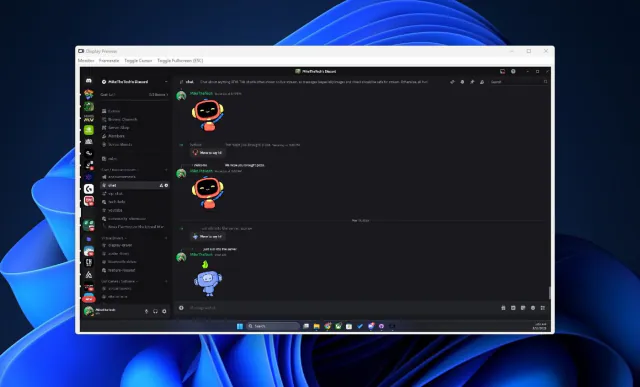
View your virtual displays in application windows.
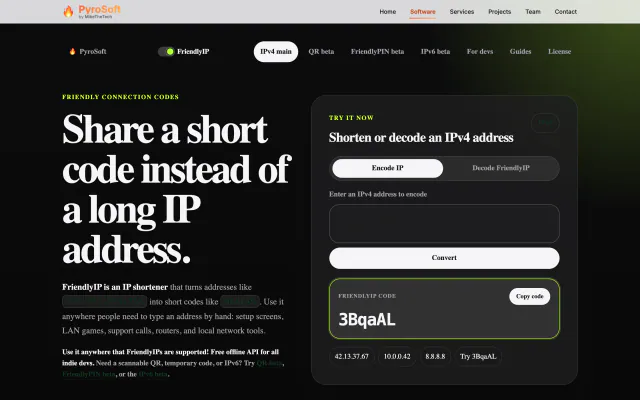

Turn IPv4 addresses into six-character codes you can read aloud.