
 Updated Oct 5
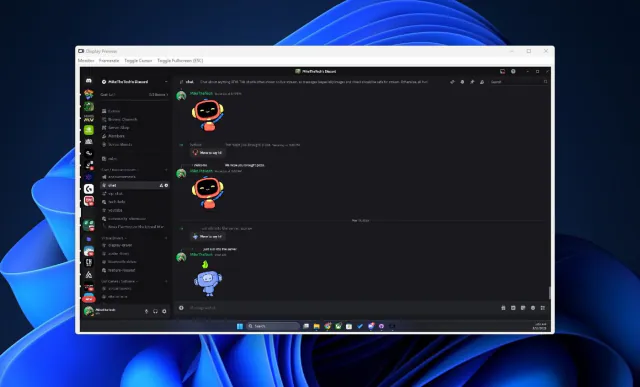
Display Preview AppDisplay · Utilities
View your virtual displays in application windows.
$2.50Windows

Use a Kinect as a webcam, with your background swapped for green.
April 2020 release The app window: Kinect for Windows branding, the green output area, a Near Mode checkbox and a Screenshot button that saves to My Pictures.
Kinect Virtual Green Screen let you use a Kinect v1 sensor as a webcam with your background removed automatically. It replaced your real-life background with a virtual green screen, ready to be keyed out in OBS Studio or any app that can capture a window.
Mike built it in C# with Visual Studio on the BackgroundRemovalBasics sample from the Kinect Toolkit. The window showed the live result, with a Near Mode option and a Screenshot button that saved a still to your My Pictures folder.
He first released it on his website in April 2020 with the source code, then offered it free (name your own price) on itch.io and on GitHub, where version 21.4.22 was posted in October 2023. It needed the Kinect for Windows SDK 1.8 and the Kinect PC drivers.
A Kinect v1 sensor on a Windows PC with the Kinect for Windows SDK 1.8 installed.
You captured the app's window in OBS Studio (or any app that could capture a window) and keyed out the green background.
Updated Oct 5View your virtual displays in application windows.
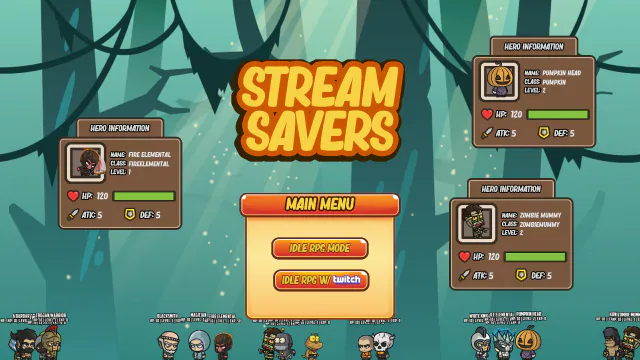

A desktop-overlay idle RPG where Twitch chat unleashes chaos.
 Open source
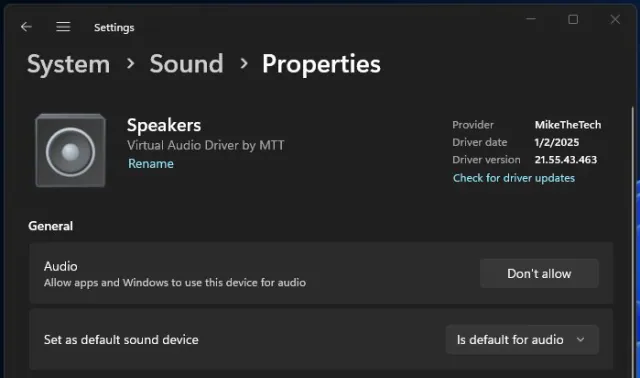
Add a virtual speaker and virtual microphone to your Windows device.