The YouTube player loads when you press Play.
Xgody N6 Pro: Moving the Projector and Watching It Correct the Picture
A textured-wall setup, the rotating stand and the difference between 4K input support and a 1080p picture.
Article published November 3, 2026.
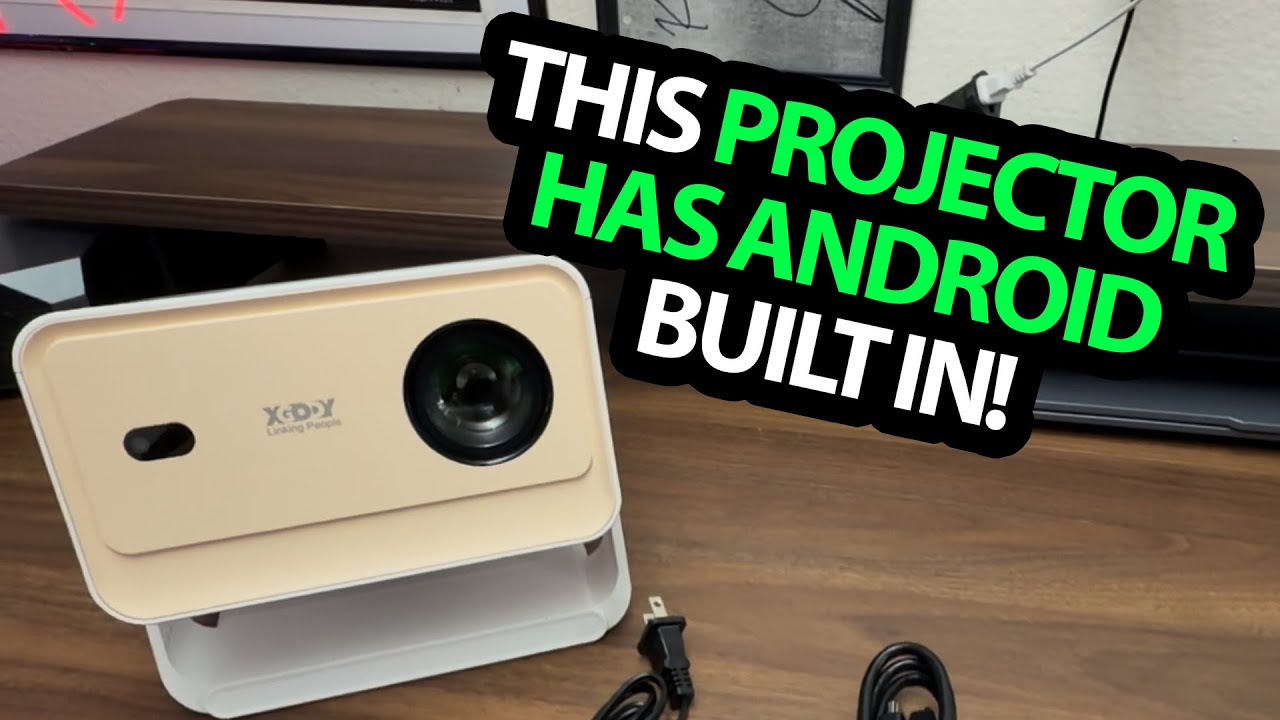
I did not even have the projector screen yet. The Xgody Gimbal N6 Pro was already on the wall, so I used the textured wall to try the menus and show what happened when I moved the projector out of position.
That makes this a practical setup walkthrough, with one particularly useful feature to watch: the automatic adjustment after the unit gets moved.
The rotating stand makes placement easier
I showed the stand that gives the Gimbal model its name and talked through adjusting the angle. Then I deliberately moved the projector so viewers could see it detect the change and run its correction process.
The image settled back into shape. I also pointed out that a more extreme angle could reduce the usable picture area, so the adjustment did not make placement irrelevant.
Built-in menus as well as external inputs
I went through the home screen, apps and source options, including HDMI and USB. That was the appeal of the package to me: the projector could present its own interface as well as take an external device's picture.
I described the Whale interface during the video. I did not test every streaming service, app entitlement or input mode, so check current support for the specific service or device you want to use.
4K input support is not a 4K panel
I made this distinction in the walkthrough: the product was described as supporting 4K content while its internal resolution was 1080p.
The advertised 700 ANSI figure and HDR features were not independently measured here. I liked how the menus looked in my room, but a textured wall and a camera view are not a brightness or color-accuracy benchmark.
Watch the adjustment happen
The useful part of the video is seeing the projector respond after I move it. If you are deciding whether the stand and automatic correction would make your setup easier, that sequence is more informative than a specification list alone.
The video and its description discussed different historical sale offers. The original description's coupon code is preserved below with its listed terms; check current eligibility and the checkout total rather than assuming the old price still applies.
Links from the video
Affiliate disclosure: These links may earn me a commission at no extra cost to you.
Coupon code: BFC4E2HR — Listed total price US$103. Listed with the video; no expiration was provided. Check current eligibility, terms and checkout total.
Links and offers are from the video description. Availability, prices and offer terms may change.
Some links to other products on this page are affiliate links, and we may earn a commission if you buy through them. It costs you nothing extra, and it has not changed what this article says — where a competitor is the better answer, we say so.