The YouTube player loads when you press Play.
NearHub Tail: Pair the Board First, Then Bring Your Computer
The adapter, pairing update and computer connection I tried with my NearHub smartboard.
Article published November 3, 2026.
The interesting part of the NearHub Tail is not the size of the adapter. It is what happens after you pair it: move it from the board to your computer, plug it in, and get your screen onto the whiteboard.
NearHub is a sponsor of my channel. In this walkthrough, I connected the Tail hardware to my NearHub smartboard, went through an update and then tried the computer connection.
Pair it with the board first
I started at the smartboard with the NT10 and NX10 parts connected. The board recognized them and offered a firmware update, so I completed that before continuing.
The first update screen was not the end of the process. I went back to check pairing, then moved the adapter over to the computer. That sequence is useful to see in the video if you are expecting the computer to be the first thing you connect.
HDMI, USB power and the included adapter
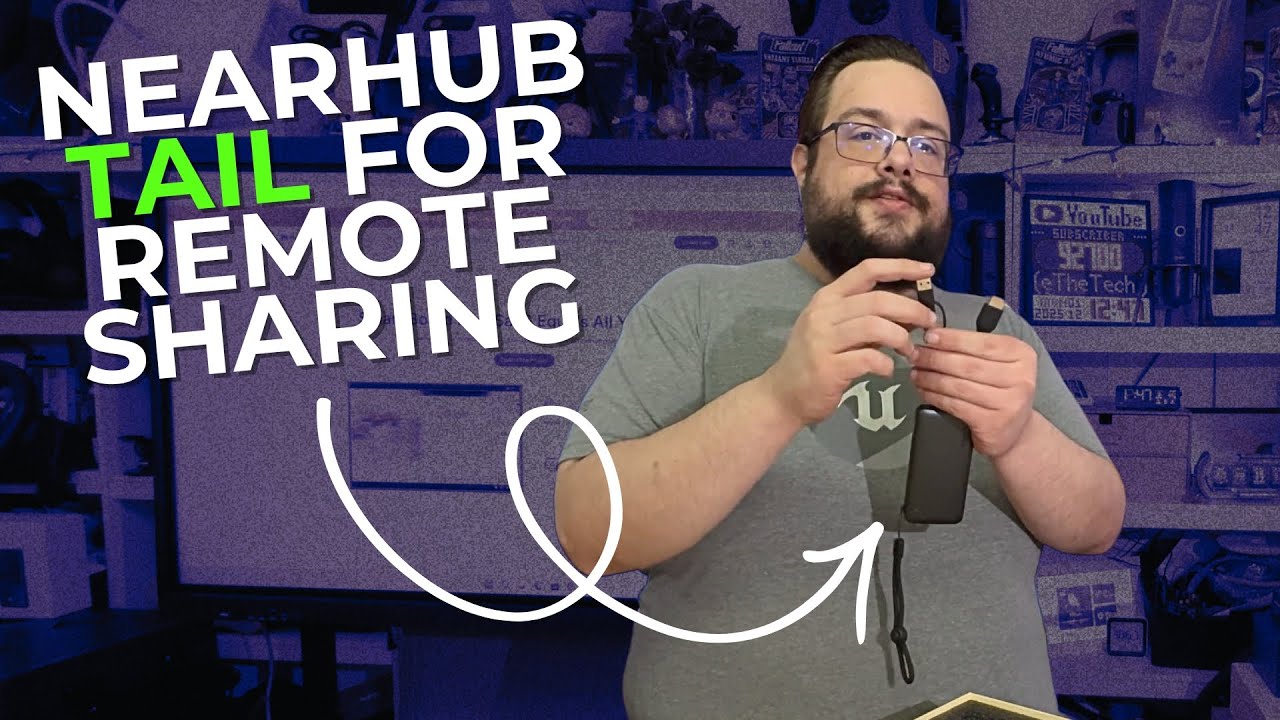
I showed the HDMI connection, USB cable and the adapter for switching between the supplied USB arrangements. There was also a lanyard for carrying the device around an office.
After I plugged it into the computer, the screen came back up on the board. That was the part I wanted from this setup: a convenient way to bring another machine's display into the room without making the presentation setup a whole project.
Keep the board and the adapter separate in your expectations
I also talked about the Windows computer and touch features of my smart whiteboard. Those were features of that board configuration, not a Windows PC hidden inside the Tail adapter.
The description advertises 1080p sharing and a particular range. My demonstration showed pairing, updating and a computer connection; it did not measure latency, test the maximum distance or establish compatibility with every phone and USB-C port.
A useful addition to this room
I was excited about using this alongside the board in more videos and presentations. The original product link is below. Check the supported board and source-device requirements for the exact kit you are considering; the video above shows the connection sequence I actually went through.
Links from the video
Affiliate disclosure: These links may earn me a commission at no extra cost to you.
Links and offers are from the video description. Availability, prices and offer terms may change.
Some links to other products on this page are affiliate links, and we may earn a commission if you buy through them. It costs you nothing extra, and it has not changed what this article says — where a competitor is the better answer, we say so.