The YouTube player loads when you press Play.
Razer Laptop Cooling Pad: A Loud Fan and a Quick GPU-Temperature Check
Trying the magnetic frames, controls and the displayed reading during a short setup.
Article published November 4, 2026.
The fan is the part I notice as soon as this cooling pad is running. At the highest setting, it is loud enough that I mention it during the demonstration—and the controls let me turn it down.
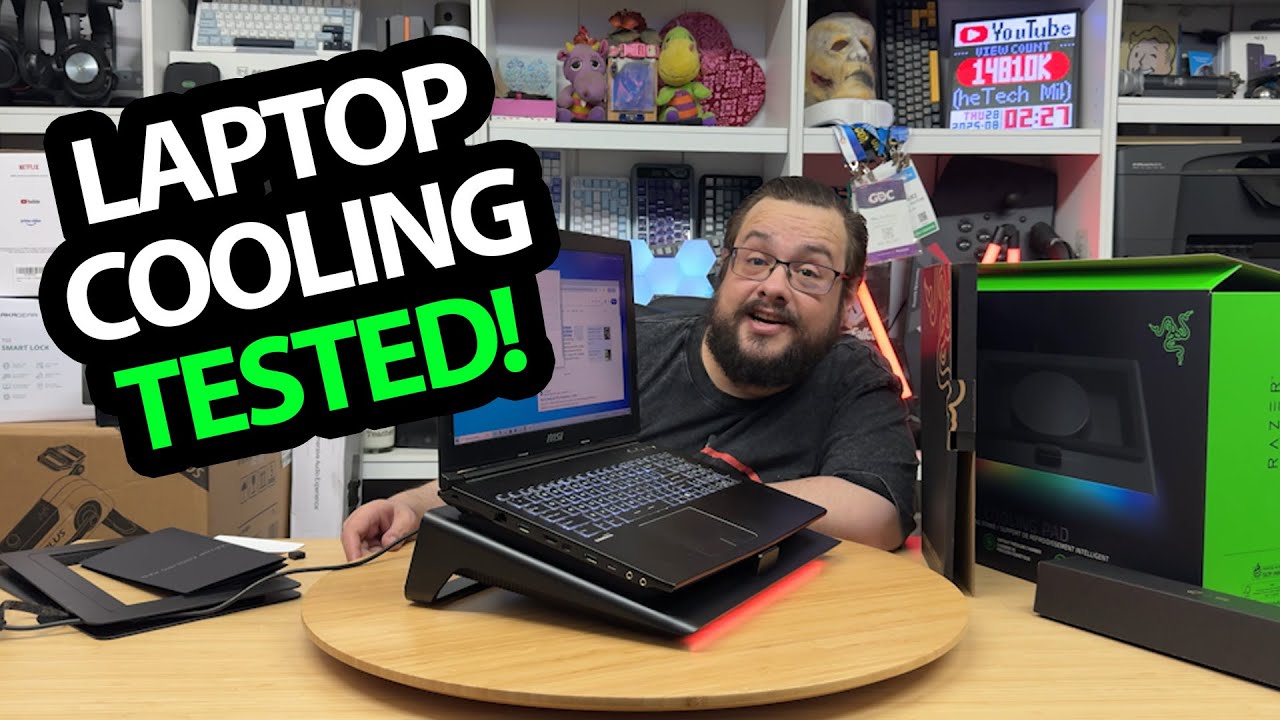
This is the Razer Laptop Cooling Pad unboxing and a quick temperature observation. It is not the controlled gaming and HyperBoost comparison described in the original promotional text.
Frames, power and a USB hub
I unpack the interchangeable frame pieces, guides and power adapter, then look over the pad. The different openings are intended for different laptop arrangements, so I keep the larger frame fitted for the computer I am using.
I also connect the USB lead and point out the rear hub connections. The setup includes a Windows update and restart before I move into the controls.
The buttons show what level is selected
I turn the fan on and off, change its power level and cycle the lighting. The level indicator changes as I increase the setting, and the RGB effects have their own control.
Those are features I actually operate. The fan design and pressure claims are not airflow measurements I complete here.
The displayed GPU reading moves
In the short check near the end, I report a GPU temperature of about 59°C, then lower readings after turning the pad on, reaching about 45°C.
That is an observation during this recording, not a guaranteed temperature reduction. I do not hold the workload and room conditions constant, repeat the run or show an FPS comparison. The noise at full power is also part of the experience, rather than something the temperature number should hide.
Links from the video
Affiliate disclosure: These links may earn me a commission at no extra cost to you.
Links and offers are from the video description. Availability, prices and offer terms may change.
Some links to other products on this page are affiliate links, and we may earn a commission if you buy through them. It costs you nothing extra, and it has not changed what this article says — where a competitor is the better answer, we say so.