The YouTube player loads when you press Play.
Scoutlite SparkO: A Little Light with Several Places to Put It
Clipping it to a shirt, attaching it to a desk and angling it toward a phone camera were the useful parts of this first look.
Article published November 3, 2026.
A flashlight gets a lot more useful when you do not have to hold it. That was the appeal of the Scoutlite SparkO for me: clip it to your shirt, stick it to a metal surface or angle it toward something you are filming.
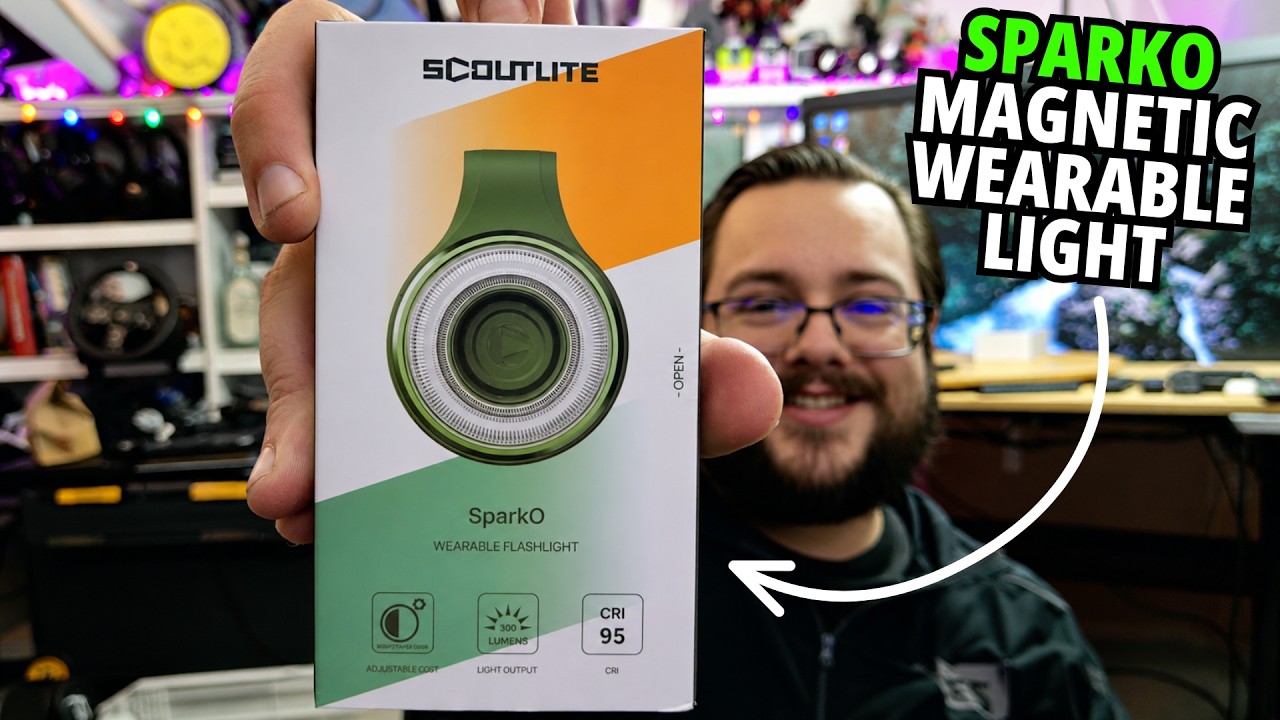
In my June 17, 2026 walkthrough, I opened the light and its magnetic phone accessories, tried the controls and found the charging port I had almost missed. It is a small device with several ways to put the light where you need it.
The clip is the useful part
The light separates from its magnetic backing so you can put fabric between the two pieces. I attached it to my shirt in the video. That leaves both hands free, which is what made me think about walking the dog or working on something after dark.
It also attached to my metal desk. If you have a suitable surface near the thing you are working on, you can put the light there instead of wearing it.
Those are different ways to position the same little light. I would choose the one that points it at the job, rather than assuming wearing it is always the best option.
A single button does quite a bit
I demonstrated changes to brightness, color temperature and flashing modes using the button. There is a little button-press vocabulary to learn, but once you remember it, you can change the light without opening an app.
The output was bright enough in my recording setup to work as a fill light. I could turn it down for a gentler effect or change the angle when it was too direct. That was more useful to demonstrate than simply leaving it on its highest setting.
The package listed a 300-lumen high setting and different runtime estimates, including a longer eco setting. Those were the supplied figures; this video was not a brightness measurement or battery rundown.
The phone adapter adds room to move
The light itself is smaller than a MagSafe ring. Although it could stick magnetically to my phone, the separate adapter gave it a more definite attachment and an adjustable arm.
I could point it outward, turn it toward myself for the selfie camera or use the arm to change its angle on the desk. The accessories I opened also included magnetic rings. Check the package you are ordering, particularly if you want the phone setup.
Do not miss the charging cover
At the end of the video, I came back to the small cover on the bottom. Lift it to reach the charging connection. A cable was included in the box I opened.
What I liked was being able to use the compact light by itself, then add the larger phone adapter when I wanted that flexibility. The original product link and listed MR10 discount are below; check the store for the current bundle and offer terms.
Links from the video
Affiliate disclosure: These links may earn me a commission at no extra cost to you.
Coupon code: MR10 — 10% off. Listed in the June 17, 2026 video description. No expiry stated; check the current store terms.
Links and offers are from the video description. Availability, prices and offer terms may change.
Some links to other products on this page are affiliate links, and we may earn a commission if you buy through them. It costs you nothing extra, and it has not changed what this article says — where a competitor is the better answer, we say so.