The YouTube player loads when you press Play.
ProtoArc EM11 NL: Getting Used to a Different Mouse Grip
A vertical grip, three-device switching and the adjustment I noticed moving from my regular mouse.
Article published November 3, 2026.
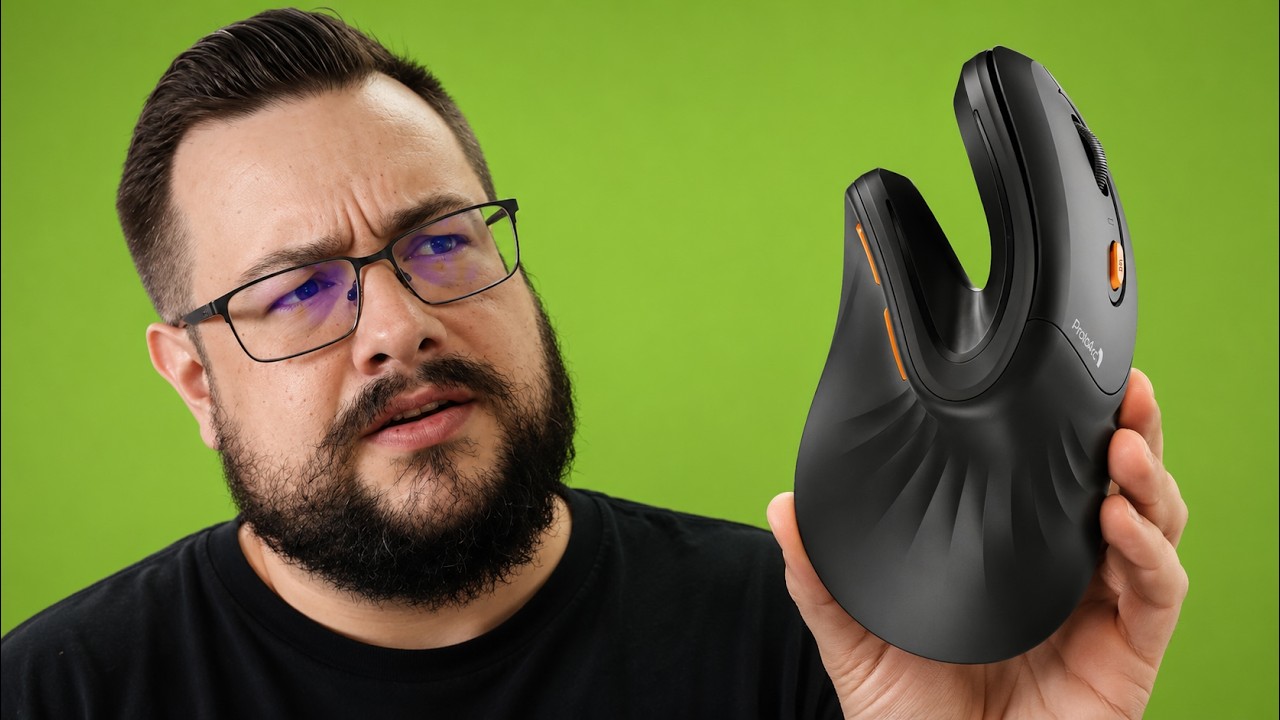
The shape of the ProtoArc EM11 NL makes sense as soon as you put your hand on it. Instead of turning your palm down over a flat mouse, you hold this one at a more upright angle. It changes a movement I repeat all day, which is why I wanted to try it.
My wife and I both spend a lot of time at computers, and comfort in our hands and shoulders was the reason we started looking at a different mouse. These notes come from my July 6, 2026 walkthrough and my experience at that point, rather than a medical assessment.
The adjustment is real
I like the more rested position, but I would give yourself time to learn it. Moving from a flat grip to an upright one changes how moving your hand translates into moving the cursor. A small physical change can feel surprisingly different when your old mouse movements are automatic.
I still kept my other mouse for games and tasks where I wanted those familiar, quick movements. For general computer work, the vertical design was the one I wanted to switch back to. That is the useful distinction for me: an everyday work mouse does not have to replace every input device on the desk.
Moving between computers
The EM11 NL supports Bluetooth and a 2.4 GHz USB receiver. In the video, the receiver was already connected to my computer. That gives you another connection option if the machine you want to use does not have Bluetooth.
You can switch between three devices using the mouse's controls. If your day involves more than one computer, being able to change the connection from the mouse is convenient. The sensitivity control on the underside also lets you adjust cursor movement while you get used to the different grip.
Charging without another disposable battery
The built-in battery charges over USB-C. By the time I recorded the walkthrough, I had gone a while without needing to charge it. I described getting several days of use, rather than presenting a timed battery rundown.
That is why I would avoid turning my casual estimate into a guaranteed number of weeks. Usage and connection settings matter. What I appreciated was being able to charge the mouse at the desk and get back to using it.
Who I would put it in front of
If you are curious about a different mouse posture for long stretches of everyday computer work, the EM11 NL is worth a look. The learning period is the part I would expect going in. It took some adjustment for me, and I still had a reason to keep my regular gaming mouse nearby.
Watch the video above for the grip and controls. The product link from that video's description is below, so you can check the current listing rather than rely on an old price.
Links from the video
Affiliate disclosure: These links may earn me a commission at no extra cost to you.
Links and offers are from the video description. Availability, prices and offer terms may change.
Some links to other products on this page are affiliate links, and we may earn a commission if you buy through them. It costs you nothing extra, and it has not changed what this article says — where a competitor is the better answer, we say so.