The YouTube player loads when you press Play.
Meld Studio: Building a Camera-and-Desktop Scene on My First Try
A March 2025 look at layers, snapping, transitions and recording settings.
Article published November 4, 2026.
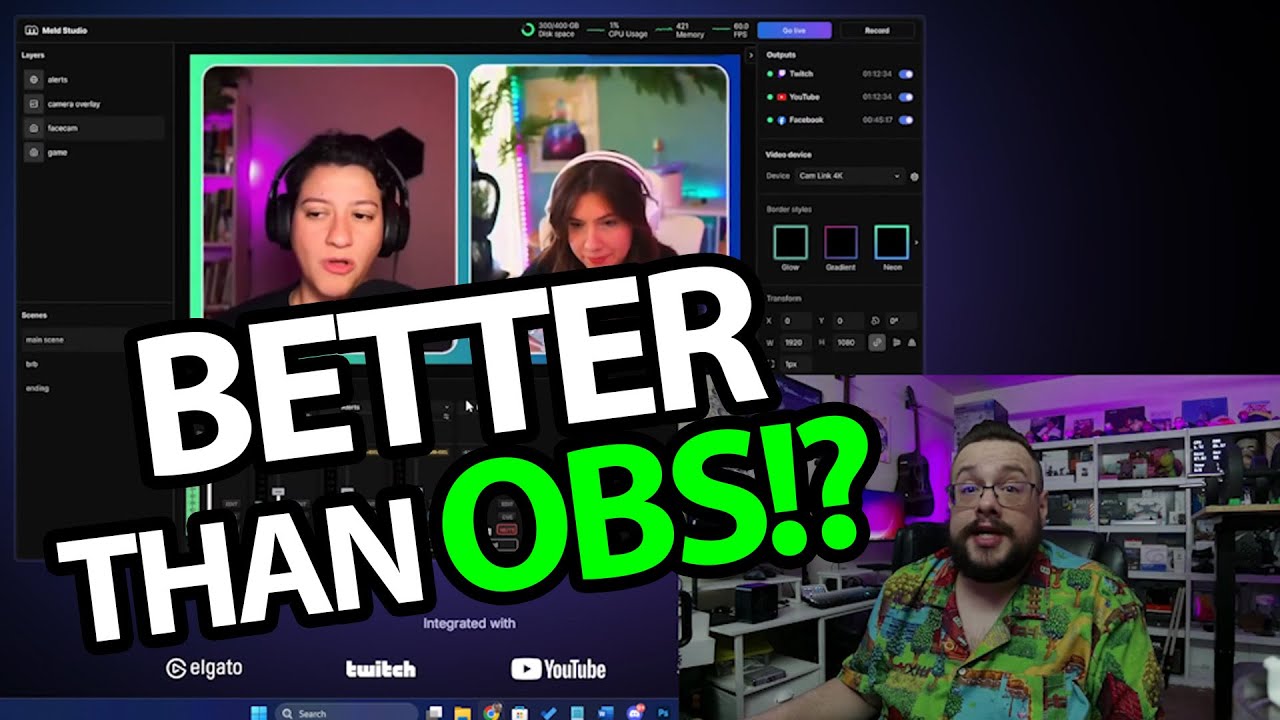
Meld Studio gets my attention because it looks like the kind of streaming interface I can understand quickly. The useful test is whether I can get my camera and desktop into a scene without spending the whole video finding settings.
Start with the camera
After installing the Windows version in this March 2025 recording, I launch Meld and choose my camera. I deactivate it in OBS first so it is available to the new app.
The camera image appears, and dragging it around shows snapping already enabled. I like that immediate help with positioning. I also choose the audio input and see the microphone being monitored in the mixer.
Add the desktop underneath
I add a display-capture layer, select my monitor and move the layer order so the camera stays above the desktop. Now I have the basic picture-in-picture layout I was aiming for.
Changing scenes brings in an animated transition by default. I explore effects and the audio mixer as well, including the controls labeled gain, stereo panner and Magic Mic.
The settings are easy to find
I open preferences and talk through the canvas, frame-rate, bitrate and recording-format settings shown in that installation. I also like seeing remaining disk space in the interface.
Those are observations from that version and session. I do not run a controlled performance comparison, verify a multistream delivery or leave it recording for a long endurance test.
Is it better than OBS? This first try makes me interested enough to ask the question, especially for the layout and transitions. It does not establish a universal replacement for every OBS workflow. The original Meld website from the description is below.
Links from the video
Affiliate disclosure: These links may earn me a commission at no extra cost to you.
Links and offers are from the video description. Availability, prices and offer terms may change.
Some links to other products on this page are affiliate links, and we may earn a commission if you buy through them. It costs you nothing extra, and it has not changed what this article says — where a competitor is the better answer, we say so.