The YouTube player loads when you press Play.
ATTACK SHARK R85 HE: Saved Settings and a Keyboard I Enjoy Typing On
A closer look at the wired R85 HE, its controls, onboard settings and the typing demo from the video.
Article published November 3, 2026.
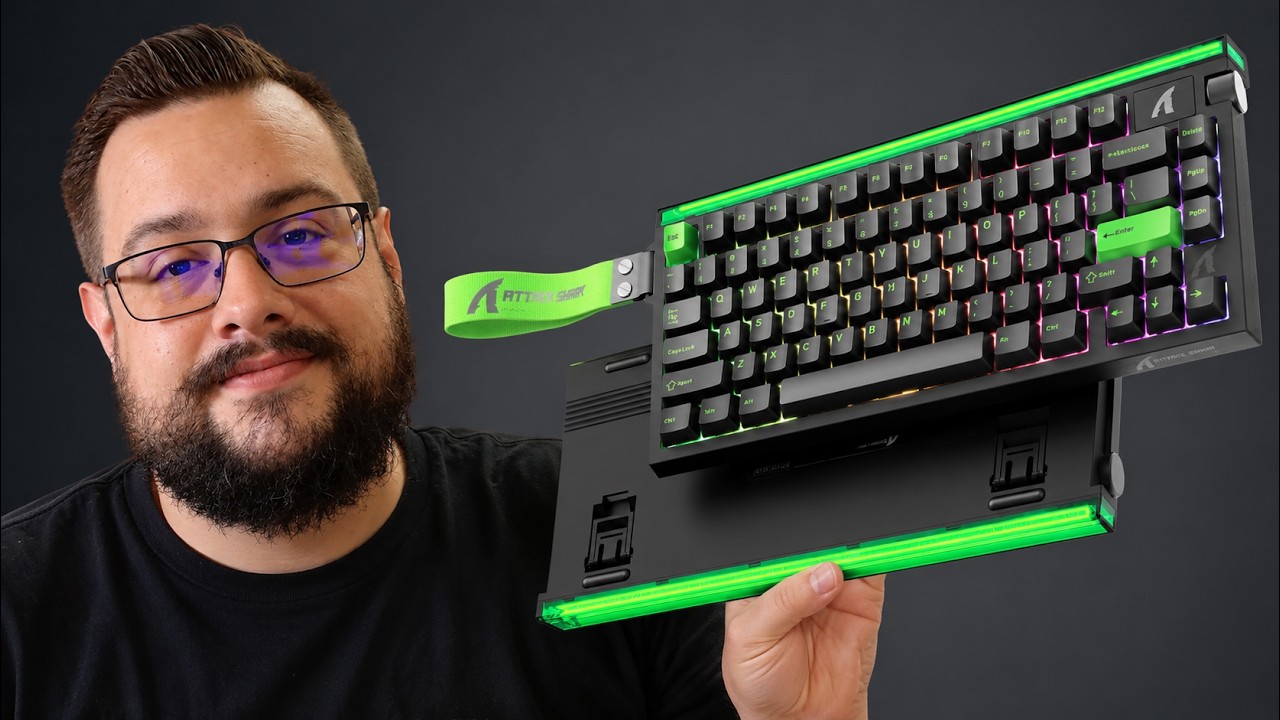
The ATTACK SHARK R85 HE caught my attention before I got into the settings. I like the way it looks, the removable keycaps and the small details that make it easy to put on a desk or take along. A gaming keyboard still has to be something I enjoy typing on.
Disclosure: ATTACK SHARK sent the keyboard for the video. This article follows my July 6, 2026 walkthrough, including the typing demonstration and the strap I initially put on the wrong side.
A keyboard that remembers its setup
The RGB modes are easy to notice, but onboard memory is the feature I particularly like. The keyboard can retain its settings when you move between computers, so the setup you chose does not have to disappear with a different machine.
There is also a multimedia knob at the upper left. Having a physical control within reach is useful when I am working, recording or switching between applications. Not every adjustment needs to happen in a software window.
Specifications and the test in the video
I discussed the advertised 8,000 Hz polling rate and rapid-trigger precision in the walkthrough. Those are specifications I was describing, rather than latency measurements I performed in the video. I would not turn them into a claim about an improvement in my game results.
What the video does include is a typing sound demonstration. I liked the sound and feel, and mentioned the layered sound treatment. You can listen to that section in the player above and decide how it comes across to you.
It is wired
This is not a keyboard I was turning on and using from a battery. It connects with the included cable, which has an angled connector. Plug it into the computer and you have the physical connection ready to go.
The carrying strap is a nice detail, too. During the unboxing, I put it on the opposite side from its intended position. I pointed that out in the walkthrough rather than pretend the first attempt was the correct installation.
The everyday details are why I kept it
Removable keycaps, a useful knob, saved settings and a typing feel I enjoy all matter after the specification list is finished. I have liked the ATTACK SHARK keyboards and mice I had tried, and this was another one I wanted to keep using.
The original product link is below. Check the current listing and configuration there, and use the video for the unboxing, physical controls and typing demonstration.
Links from the video
Affiliate disclosure: These links may earn me a commission at no extra cost to you.
Links and offers are from the video description. Availability, prices and offer terms may change.
Some links to other products on this page are affiliate links, and we may earn a commission if you buy through them. It costs you nothing extra, and it has not changed what this article says — where a competitor is the better answer, we say so.