Virtual Audio Windows 10/11 • WDK drivers • Works with VR/OBS/Sunshine

Virtual Audio Driver

Add a virtual speaker and virtual microphone to your Windows device. Ideal for headless setups, remote desktop streaming, VR, and audio testing without physical hardware.
Devices
Speaker + Mic
Compatibility
Win10 1903+
Arch
x64 (tested)
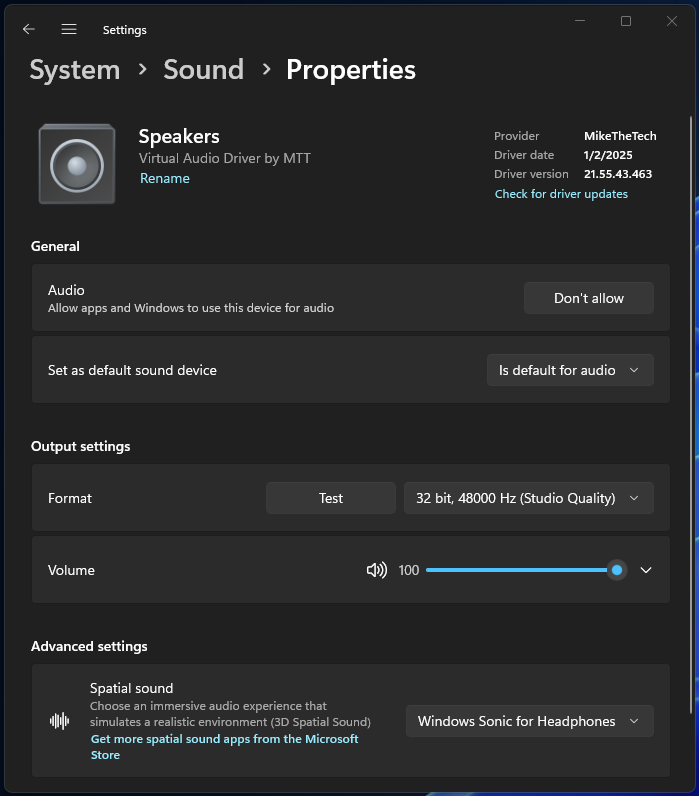
Virtual Audio Driver interface screenshot
Built with Windows Driver Kit (WDK) Virtual speaker Virtual mic

What you get

Two drivers: a virtual playback device (“fake” speaker) and a virtual recording device (“fake” microphone).

Virtual Speaker

Useful for headless servers, remote desktop streaming, and audio testing without physical speakers.

Virtual Microphone

Feed software-generated audio into apps that expect a mic input (voice chat, conferencing, streaming).

Modern audio options

Configure sample rates/bit depth on the speaker device; supports spatial sound options like Windows Sonic.

Works with streaming stacks

Designed for workflows involving VR, OBS, Sunshine, and desktop sharing software.

Open source (MIT)

Source is available under the MIT license.

For developers / orgs

Looking to integrate virtual speaker/mic into your app? Use the repo resources and contact us for advanced functionality.

Install (Device Manager)

  1. Open Device Manager → select Audio inputs and outputs.
  2. Action menu → Add legacy hardware.
  3. Select Install the hardware that I manually select → choose Sound, video and game controllers → select the Virtual Audio Driver.
  4. Verify: “Virtual Audio Driver” (speaker) and “Virtual Mic Driver” (microphone) appear in Device Manager.
Compatibility: Windows 10 (Build 1903+) and Windows 11; x64 tested (ARM64 supported per repo notes).

Quick usage

Set the virtual devices as your defaults, or route per-app audio via the Windows Volume Mixer.

Use the Virtual Speaker
Sound Settings → Output → choose “Virtual Audio Driver”. Configure Advanced + Spatial Sound as needed.
Use the Virtual Microphone
Sound Settings → Input → choose “Virtual Mic Driver”. Great for Zoom/Teams/Discord and streaming workflows.
Need deeper configuration or integration? See the official README for detailed usage and supported formats.

Get the Virtual Audio Driver

Download from GitHub releases or browse the full source on GitHub.